Teams update: No more accidental quitting • Blisstech Solutions

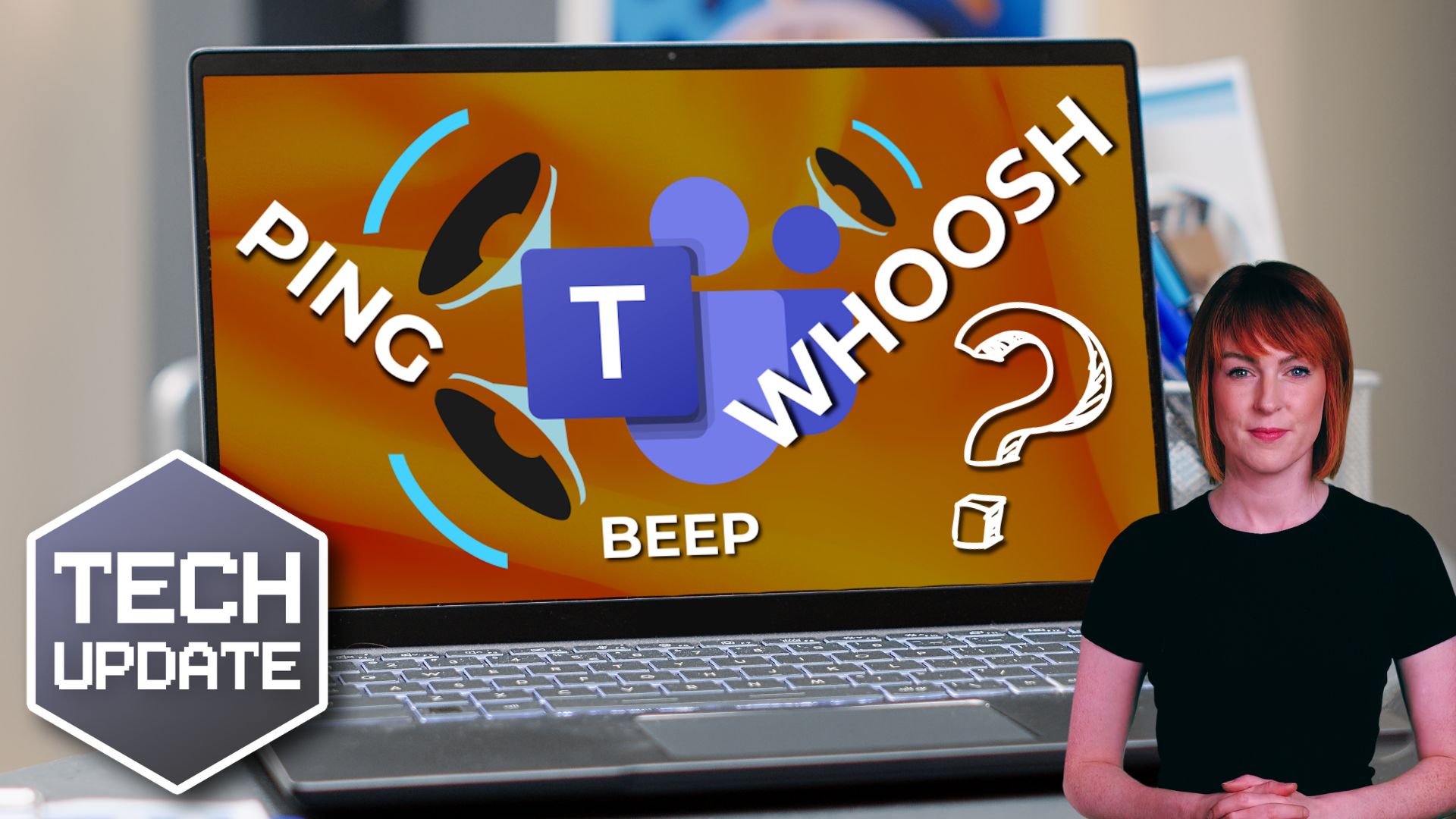
Have you ever accidentally left a Teams meeting?

You go to click something, maybe Share to present your screen, and suddenly you’re staring at your desktop while everyone else is still mid-conversation.

Awkward.

For a long time, that was a perfectly believable excuse.

The Quit option in Microsoft Teams has caught out plenty of people, especially in fast-paced meetings where you’re clicking quickly between controls.

Enough people complained that Microsoft has finally decided to fix it.

Microsoft said it would introduce an alternative way to quit a meeting using the system tray (that’s the small area down by the clock on your Windows desktop). And it’s delivered.

The idea is simple: Move Quit away from the main cluster of meeting controls so you’re less likely to click it by mistake.

If you use the desktop version of Teams, you should already see the change automatically. There’s nothing your IT team needs to switch on.

It’s not a dramatic update.

But it’s one of those small improvements that removes daily friction.

Now, just to manage expectations, this doesn’t completely eliminate the risk of clicking the wrong thing.

If you’re aiming for “Share” and misclick “Leave”, you could still drop out of the meeting. We’re not living in a perfect world just yet.

However, there’s a useful setting many people don’t know about.

Inside Teams, if you go into Settings, then General, there’s an option to turn on a confirmation message before leaving a meeting.

That extra “Are you sure?” step can save you from disappearing at exactly the wrong moment.

While we’re on the subject of small-but-helpful changes, Microsoft is also rolling out another update that will let you hide the meeting toolbar during calls.

That means more screen space and fewer distractions while you’re presenting or focusing on content.

If your people rely on Teams every day, these incremental updates reduce embarrassment, reduce disruption, and make virtual meetings feel just a bit more polished.

And if you’ve ever vanished mid-sentence from an important call, you now have one less excuse.

If you’d like to learn about other small-but-mighty features that could help everyday work, get in touch.
More Content

artificial intelligence thumbnail

Let’s start talking about Artificial Intelligence (AI)

From Alexa to Siri, AI is already all around us, but names like ChatGPT, Dall-E and Jasper have blown up the internet. Let’s decode some of the language

Cyber attacks: Stronger, faster and more sophisticated

Cyber attacks: Stronger, faster and more sophisticated

A new cyber security report has brought some bad news: Cyber attacks are getting stronger, faster, and more sophisticated. We have all the details.

Scam hazard signs

How to spot a scam

Would you know how to recognise a scam? In the 21st century, you are highly unlikely to encounter a con artist in the street as they hide behind phones, text messages and emails.  But the motivations behind 21st-century fraudsters have not changed; they want to make...

Why you will not be fine on this Cloud9

Fake Flash messages are being used as a cover for a new ‘botnet’ campaign. If you use Google Chrome or Microsoft Edge you could be a target.

How to create secure passwords

How to create secure passwords

Weak passwords are one of the biggest security risks to your business.
Why?
Because cyber criminals are getting smarter than ever before. If they manage to crack just one password, they could gain access to your sensitive business data, financial information, or even gain control of your entire system.
Cyber criminals use automated tools to guess passwords, allowing them to try out millions of combinations in seconds. So, if you’re using something like “Password123” or “CompanyName2025”, you’re practically handing them the keys to your business.
A compromised password can lead to big issues, such as:
• Data breaches
• Financial losses
• Identity theft
• Reputation damage
But how do you create strong passwords without driving yourself (and your team) mad?
Think of your password like a secret recipe, where only you should know the ingredients. It should:
• Be at least 14 characters long (the longer, the better)
• Include a mix of uppercase and lowercase letters
• Contain a few numbers and symbols (like @, $, %, or &)
• Not contain any common words or easily guessable information (like birthdays, names, or the word “password”)
Instead of using a single word, you could try a passphrase – a short, random sentence that only you would understand. For example, instead of “Sailing2025”, try something like “Coffee&CloudsAreGreat9!”. This is much harder to crack, yet still easy to remember.
You should also steer clear of these common mistakes:
• Using personal info (your name, birthday, business name, etc.)
• Reusing the same passwords across multiple accounts
• Using simple sequences (“123456” or “abcdef”)
• Storing passwords in an easily accessible place (like a sticky note on your desk)
If remembering unique passwords for every account sounds impossible, there is another option: Password managers. These generate strong passwords, store them securely and autofill them for you.
With a password manager, you only need to remember one strong master password for the manager app itself. The rest are encrypted and stored safely, reducing the risk of data breaches.
Even the strongest password isn’t foolproof, which is why multi-factor authentication (MFA) is also important. MFA requires a second form of verification, like a one-time code sent to your phone or generated from an authentication app.
If you have employees accessing your business systems, it’s a good idea to have a password policy in place to explain your rules and why they’re important. This should include:
• Unique passwords for each system and account
• Regular security training on password best practices
• Business-wide use of MFA for critical systems
• Scanning for compromised passwords regularly
By making password security a priority, you can reduce the chances of a cyber attack creating a nightmare for your business.
And if you need help making your business more secure, get in touch.

Don’t sleep on this simple, effective security booster

Don’t sleep on this simple, effective security booster

Microsoft’s enforcing an extra layer of security for logins to one of its tools. Even if you don’t use it, you should follow their lead and implement this security booster in your business.

Bring Your Own Device: Dos and don’ts for your business

Do you let employees use their own phones, laptops, or tablets for work? That includes things like sending a quick email or updating a client account. If you do, it’s important to remember that personal devices often lack the security measures of work-issued devices....
Beware these common ‘malvertising’ attacks

Beware these common ‘malvertising’ attacks

Ever clicked an online ad and wondered afterwards if it was a scam?… most of us have – and cyber criminals want us to keep doing it. Here’s what to look out for to stop your business’s data (and profits) falling into the wrong hands…

BEC attacks illustrated. Image of a hacker standing behind a computer looking menacing

Business Email Compromise (BEC) attacks are rising

Business Email Compromise (BEC) has emerged as a significant threat to businesses worldwide in recent years. As of March 2025, there has been a staggering 30% increase in BEC attacks. In late February 2025, Microsoft Defender identified nearly 2 million phishing...

Young employees have different attitudes to cyber crime

If you employ anyone aged between 16 and 19, you need to pay special attention to the cyber security training you’re giving your team.

Share This
Contact
Love Lane
Cleobury Mortimer
Shropshire DY14 8PE

01299 382 321
[email protected]
Copyright © Blisstech Solution Ltd
Registered No: 08125391 VAT No : 307 5490 05