Tech Tip: How to create a voting poll using Outlook • Blisstech Solutions

Welcome to a new Tuesday tech tip video where we will be exploring how to create a voting poll using Outlook and Microsoft Forms.

Sometimes, when we need to get people’s opinions on something, it can be a bit like herding cats!

Maybe we need to get a consensus of opinion, or maybe it’s to vote on something more formal.

If you can’t get everyone in the same physical or virtual room quickly enough, you can use the features of Microsoft Forms and Outlook to make this process simple allowing people to vote online in their own time.

This tech tip will show you how.

Enjoy!

Transcript

Hello everyone and welcome to another edition of Blisstech Solutions Tuesday Tech Tips.

In today’s tech tip, I’m going to show you how to use Microsoft Forms within Outlook to create a poll.

I’ve already created a new e-mail and then to add our poll, I am going to go to Insert and then we have an option here to add the poll.

So, what this will allow you to do, it will allow you to send a questionnaire to people so that they can vote. So, maybe you can’t get people in the room and maybe you need a decision to be made, and this is a very simple way of sending out a poll to multiple users and getting them to vote on it so you can get a response back.

So, if I click on Poll here, in the new pane that’s opened, you get to choose a question. So, let’s choose a question, and then we get to select what our possible answers are.

It could be a simple Yes or No answer or we can add additional options. We can also allow for multiple answers to be selected. So, that will change it from the radio button option, which is only allowing one selection, to allowing them to select multiple answers.

But as this is a Yes/No type answer, we only want to allow one answer. And then we click Next and this is going to show you what it will look like. And then we click add to e-mail.

You can see, it’s added our link to our email here. So when we send this to our participants, it’s going to allow them to click on that link and then vote.

Let’s show you what that looks like.

So, I click on a link, it opens up a web browser and I get to vote. Do I like cheese? Yep, I do, a lot! So I select my option and then I click vote and I get feedback on what the current poll results are.

But as the poll creator, we may want to see the full statistics of what’s going on, who’s voted which way etc.

To do that, we have to go into Microsoft Forms.

So, I’ve got Microsoft forms open here and I’m going to refresh the page, and our new poll is here.

If I click on the form it will open it up and then I can go into the responses section up here and I can see the variations in responses. I can even download it in Excel so I can see exactly which way everybody voted.

As you can see, this is a very simple way to create a poll to get people to make a decision on something that can save you a lot of time. Especially if you’re not able to get people all together at the same time to make that decision.

We hope you found this tip useful.  If you want more tech tips, take a look at our Learning Zone.
More Content

Tech Tip: How to check if your device is compatible with Windows 11

Welcome to a new Tuesday tech tip video. In it, I will show you how to check if your device is compatible with Windows 11. With Microsoft's termination of support for Windows 10  in October 2025, it's crucial for business leaders to proactively plan for the transition...

Are your productivity tools actually slowing you down?

If productivity tools aren’t embedded properly within your business, tasks can actually end up taking longer than they should.

SHOCK STAT: A third of business owners don’t trust their staff

SHOCK STAT: A third of business owners don’t trust their staff

Do you trust your employees with sensitive business data? You might be shocked to learn how many business owners don’t. But why… ? We have the answers.

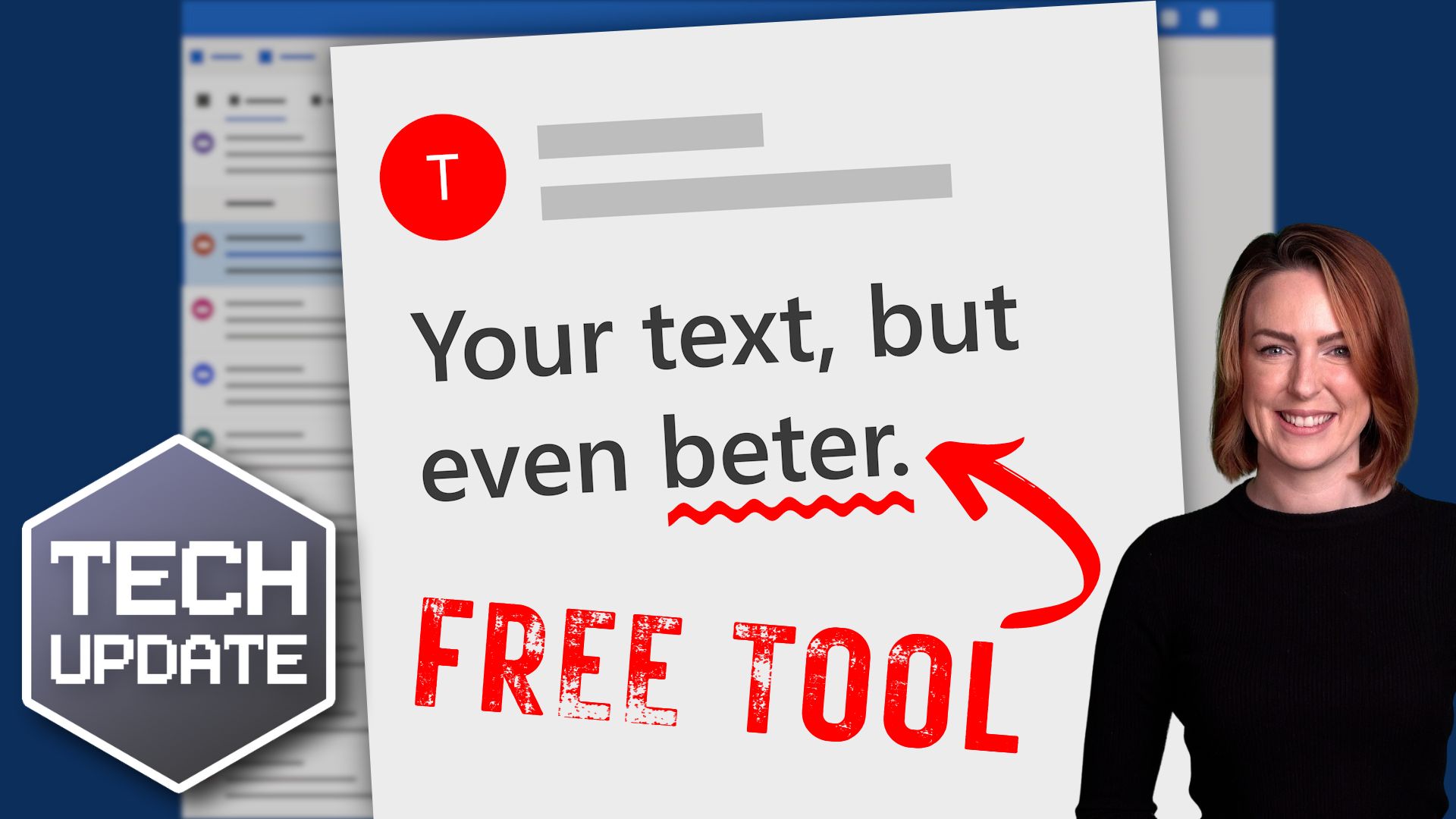
A free tool for more polished communication

A free tool for more polished communication

You’ve hit send on an important email – then you notice a typo. Windows 11 lets you spellcheck and autocorrect across most of its apps. Here we help you to set it up

Cyber extortion: What is it and what’s the risk to your business?

Cyber extortion: What is it and what’s the risk to your business?

Have you heard of cyber extortion? It’s a very real threat to your business. Here we explain what it is and how to stay safe.

Professional woman at a laptop

6 ways to make your small business look professional

When you start out in business, one of the hardest things to do is find new clients.  Most customers will not buy from you unless they trust you, and trust usually comes from reputation.  But how do you gain people's trust if you are new and don't have much of a...

Tech Tip: How to create a table of content in Word

Happy Tuesday everyone! Today's Two Minute Tech Tip was an idea given to me by my apprentice, George Borns. When asked what would be a good idea for a Tech Tip and without hesitation, George said "What about headings and tables of content in Word?" It is a great tip...
How to free up disk space on Windows title image

Tech Tip: 3 ways to free up disk space on Windows

Running low on disk space can make your computer run slowly and can cause other problems such as being unable to run applications, install important updates and in some cases cause your computer to crash. This tech tip will show you three ways that you can free up...
Templates and Slide Masters in PowerPoint title

Tech Tip: How to use Templates and Slide Masters in PowerPoint

This Tech Tip will show you how to use templates and Slide Masters in PowerPoint to give your presentations a professional and consistent look. I've been using PowerPoint for over 25 years and have created a lot of presentations. Previously, I would work from a...
Are your employees your security’s weakest link?

Are your employees your security’s weakest link?

Great employees have the same goals you do. But while they’re working hard to help your business succeed, they could accidentally be opening the door to cyber criminals. Here’s how to make your team your business’s strongest defence…

Share This
Contact
Love Lane
Cleobury Mortimer
Shropshire DY14 8PE

01299 382 321
[email protected]
Copyright © Blisstech Solution Ltd
Registered No: 08125391 VAT No : 307 5490 05