It's nearing the end for Windows 10 - Are you ready? • Blisstech Solutions

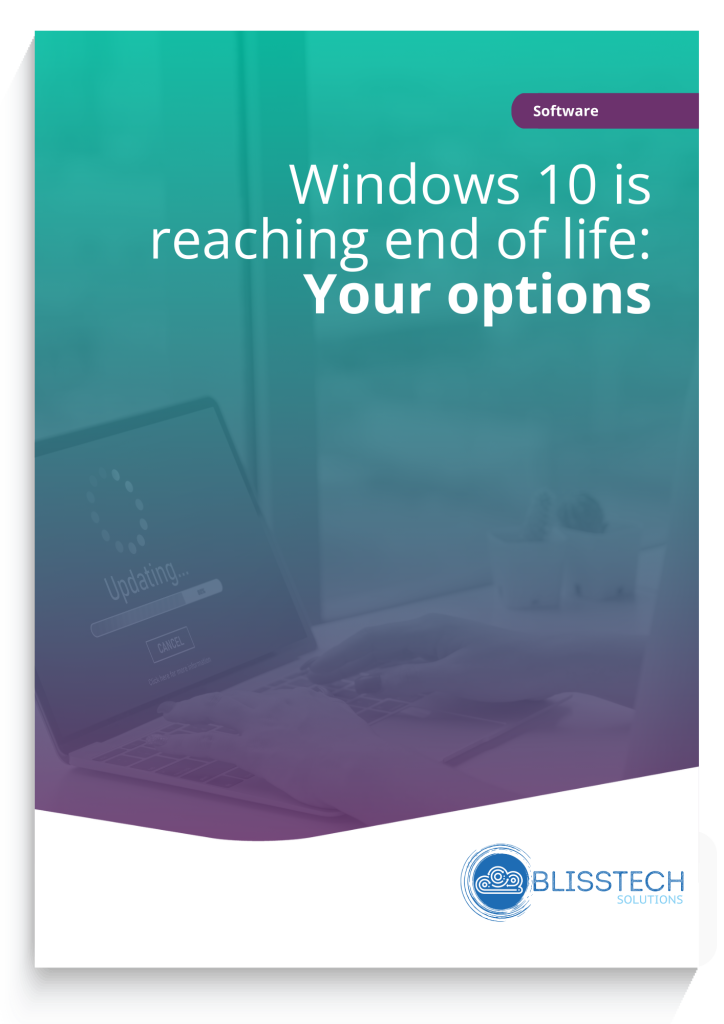
It’s time to say goodbye to Windows 10

Next year, we’ll say a final farewell to Windows 10 as it reaches the end of its life.

Microsoft is stopping support. This means no new tools or features and no more security updates.

If you’re still using Windows 10 in your business, now’s the time to act so you avoid any last-minute panic… or putting your data at unnecessary risk.

In our latest guide we explain the options your business has, as well as what you need to consider for each one.

Download your free guide today, and if you need professional help and advice, please get in touch.
More Content

Where could AI take your business - Blog image

Could AI be the key to your businesses growth?

Artificial Intelligence (AI) is no longer just a futuristic concept. It's here now, and businesses of all sizes need to start embracing it to stay ahead of the competition. Our latest guide shows you how to use AI to revolutionise your business, from customer support...

Why setting up Facebook Wi-Fi for your business is a good idea

Setting up Facebook Wi-Fi for your business is a great way to increase customer engagement and loyalty. When customers connect to your guest Wi-Fi they can check in to your business on Facebook to gain access rather than entering a WiFi code. This allows them to stay...
Templates and Slide Masters in PowerPoint title

Tech Tip: How to use Templates and Slide Masters in PowerPoint

This Tech Tip will show you how to use templates and Slide Masters in PowerPoint to give your presentations a professional and consistent look. I've been using PowerPoint for over 25 years and have created a lot of presentations. Previously, I would work from a...
Beware: Is that Microsoft… or a phishing attempt?

Beware: Is that Microsoft… or a phishing attempt?

Another email from Microsoft. But this time it’s asking you to take urgent action to protect your account. Before you click any links or provide any personal information, ask yourself: Is it really Microsoft? Or could it be a phishing attempt? Here’s how to tell…

Outdated backup systems could leave your business vulnerable

Outdated backup systems could leave your business vulnerable

When did you last review your business’s backup tools? Outdated backup systems can fail to protect you from modern threats, like ransomware attacks. If you want a reliable backup system, here’s what you need to know…

Tech Tip: How to name cells in Excel

Welcome to a new Tuesday tech tip video where I will show you how to name cells in Microsoft Excel. Naming cells can make your spreadsheets easier to understand and maintain and help you write more concise and efficient formulas. In the video, I show one way of doing...

Windows 12 is coming… here’s what we know so far

While Windows 11 is only just celebrating its first birthday, we’re already hearing our first rumours about what Windows 12 will have in store. There’s no rush for the time being – we won’t see this new operating system until the back end of 2024 – but we love to be ready for what’s coming next, so here’s what we know …

How to create secure passwords

How to create secure passwords

Weak passwords are one of the biggest security risks to your business.
Why?
Because cyber criminals are getting smarter than ever before. If they manage to crack just one password, they could gain access to your sensitive business data, financial information, or even gain control of your entire system.
Cyber criminals use automated tools to guess passwords, allowing them to try out millions of combinations in seconds. So, if you’re using something like “Password123” or “CompanyName2025”, you’re practically handing them the keys to your business.
A compromised password can lead to big issues, such as:
• Data breaches
• Financial losses
• Identity theft
• Reputation damage
But how do you create strong passwords without driving yourself (and your team) mad?
Think of your password like a secret recipe, where only you should know the ingredients. It should:
• Be at least 14 characters long (the longer, the better)
• Include a mix of uppercase and lowercase letters
• Contain a few numbers and symbols (like @, $, %, or &)
• Not contain any common words or easily guessable information (like birthdays, names, or the word “password”)
Instead of using a single word, you could try a passphrase – a short, random sentence that only you would understand. For example, instead of “Sailing2025”, try something like “Coffee&CloudsAreGreat9!”. This is much harder to crack, yet still easy to remember.
You should also steer clear of these common mistakes:
• Using personal info (your name, birthday, business name, etc.)
• Reusing the same passwords across multiple accounts
• Using simple sequences (“123456” or “abcdef”)
• Storing passwords in an easily accessible place (like a sticky note on your desk)
If remembering unique passwords for every account sounds impossible, there is another option: Password managers. These generate strong passwords, store them securely and autofill them for you.
With a password manager, you only need to remember one strong master password for the manager app itself. The rest are encrypted and stored safely, reducing the risk of data breaches.
Even the strongest password isn’t foolproof, which is why multi-factor authentication (MFA) is also important. MFA requires a second form of verification, like a one-time code sent to your phone or generated from an authentication app.
If you have employees accessing your business systems, it’s a good idea to have a password policy in place to explain your rules and why they’re important. This should include:
• Unique passwords for each system and account
• Regular security training on password best practices
• Business-wide use of MFA for critical systems
• Scanning for compromised passwords regularly
By making password security a priority, you can reduce the chances of a cyber attack creating a nightmare for your business.
And if you need help making your business more secure, get in touch.

Tech Tip: How to use a Password Manager

This Tech Tip is a tip on how to manage your passwords. It's a long tip this week, but that's because there is a lot to tell! With so many things being done online now, passwords are needed constantly.  But with the advice that every password should be unique and not...
OneDrive Backup Tip Video Thumbnail

Tech Tip: Using OneDrive to automate backups

Happy Tuesday everyone! Today's Tech Tip is a tip on how to use OneDrive to automate the backup of Known Folders. Known Folders are what Microsoft call your Documents, Desktop and Pictures folders in your Windows profile. If you are like most people, you will accept...
Share This
Contact
Love Lane
Cleobury Mortimer
Shropshire DY14 8PE

01299 382 321
[email protected]
Copyright © Blisstech Solution Ltd
Registered No: 08125391 VAT No : 307 5490 05